Guide
Follow these steps to set up and use the extension effectively.
Choose your filling method
File preparation
Header names can be placed either in the first row or in the first column of your file(xlsx,csv...), followed by the data.
These header names should match the field name on the webpage — such as the input’s placeholder, label, aria-label, or nearby text that identifies the field.
Headers in the 1st row
Headers in the 1st column
Form and spreadsheet example
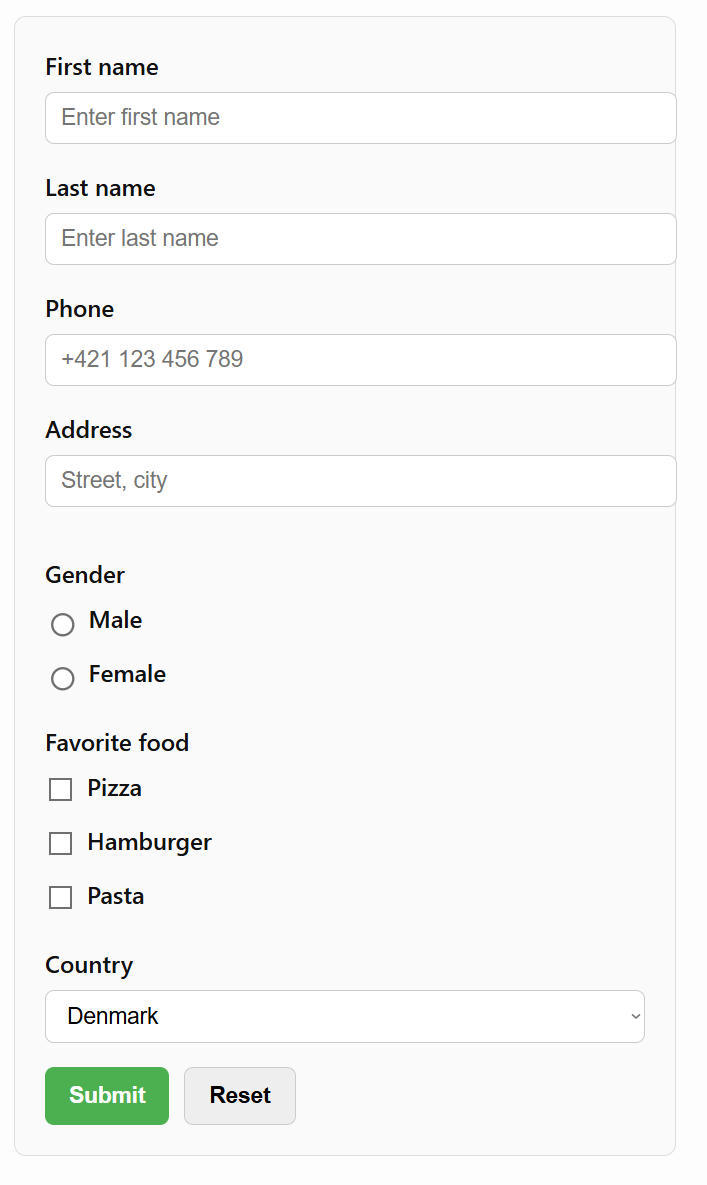

Upload file or copy and paste data to textarea
Open the extension on the page you want to fill and upload your prepared file or simply copy and paste the data from your spreadsheet into the provided text area.
Select simple form
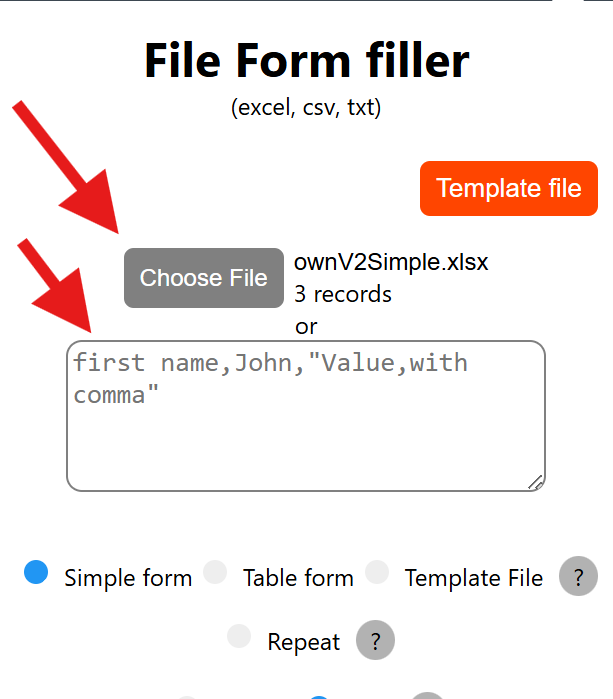
Repeat
Repeat when enabled, every field on the page with the same name is filled with the same value from your file. Example: if phone appears multiple times, all phone fields get the same phone number. When disabled, each field with the same name is filled only once. Example: the first phone field gets the first phone value, the second phone field gets the next phone value from your file (if available).
Column/Row
Column headers go in the first column. Each column to the right represents one complete data record. Choose this mode if your file from step 2 is organized vertically — one record per column.
Row headers go in the first row. Each row below represents one complete data record. Choose this mode if your file from step 2 is organized horizontally — one record per row.
Index to fill
Index to fill tells the extension which position in your data should be used next. It lets you prepare multiple sets of values in advance and choose which one to fill without uploading a new file each time. The index increases automatically after every fill, and all data is stored locally in your browser. Row mode: the index selects which row to fill next. Column mode: the index selects which column to fill next. Use this option to control exactly which prepared data set will be filled into the page.